Sage 300 AP Automation & Purchase Orders

Automate AP invoices and POs in Sage 300

Invoices arrive by email, get matched to the PO, coded to the right job and cost code, approved, and posted to Sage. No data entry. Cut 90% of PO and invoice processing time.

Sage 300 CRE is the system of record for accounting, project management, service operations, document management, and real estate management. Field Materials integrates with Sage 300 CRE to automate purchasing and AP data entry.

Sage 300 CRE
Visit partner page

What Field Materials automates in Sage 300 CRE

  • Leverage AI to instantly create itemized POs. The system pulls in relevant cost codes, cost types, and vendors from Sage.
  • Set up custom approval flows for your POs. Approved POs are posted into Sage 300 either itemized or as a lump sum per cost code.

Best construction purchase order software
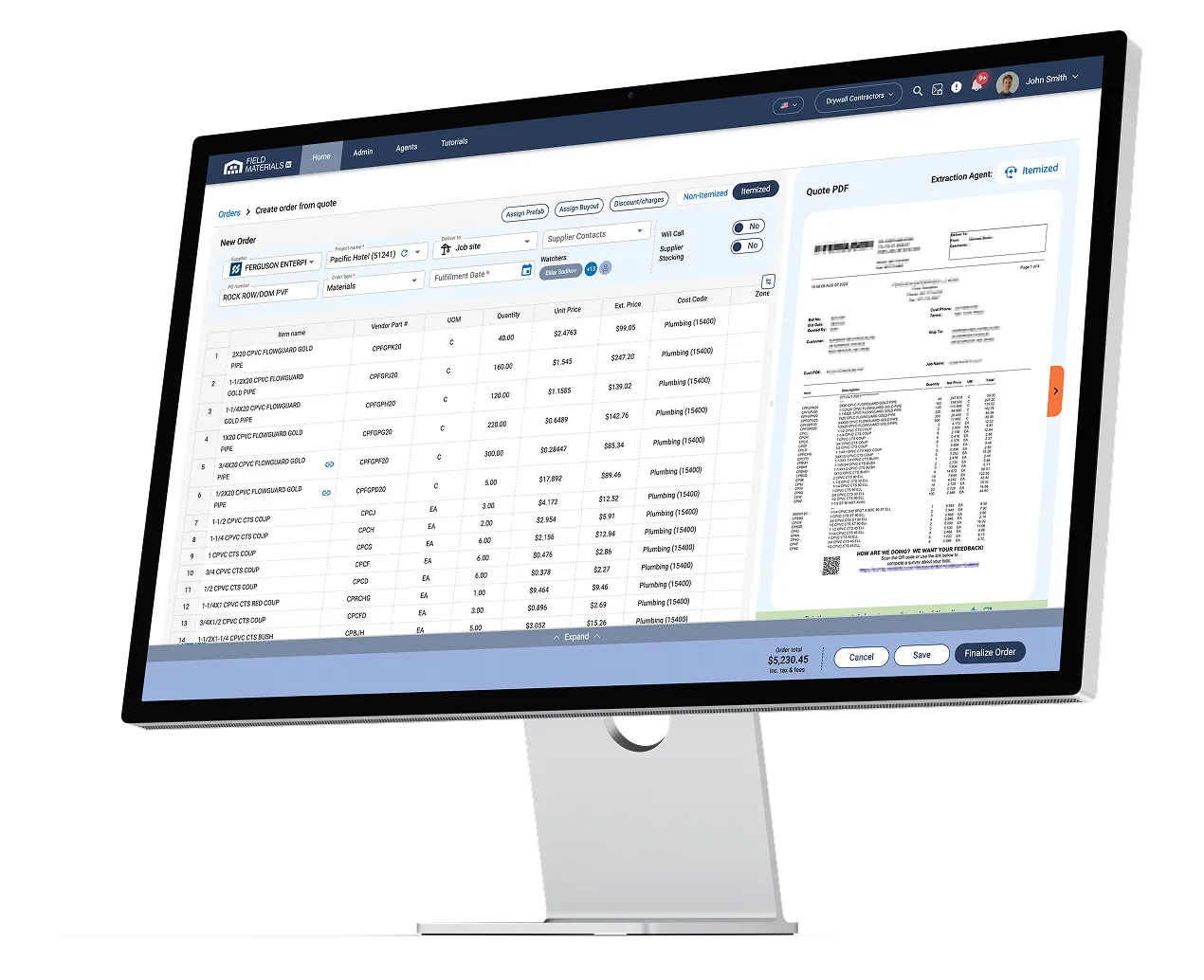
  • AP invoices are automatically downloaded, matched to the PO, checked against what was delivered, coded to job and cost code, routed for approval, and posted to Sage 300.
  • Contractors on Sage 300 CRE cut AP invoice processing from weeks to days.

Best AP automation software for construction

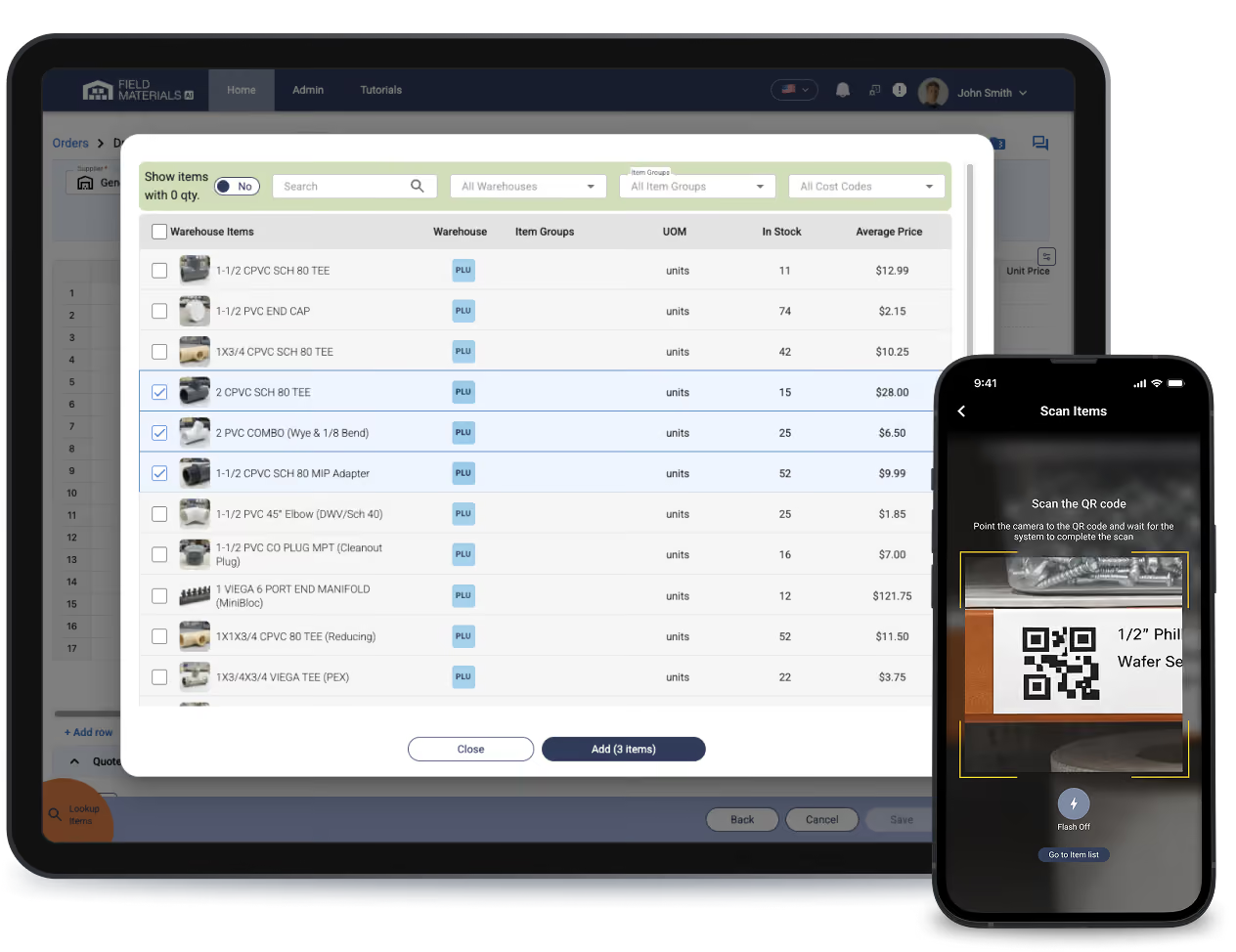
  • Foremen snap photos of delivery slips using the mobile app.
  • AI automatically matches the delivery slip to the PO, identifies the items in the PO that are being received, and pre-fills received quantities.
  • Field teams check and request general and job-specific inventory using the mobile app.

Leading construction inventory management software
How AP invoices flow into Sage 300 CRE

See price history for individual materials
  • Invoice arrives by email. Attachments are auto-downloaded from your inbox and split into individual invoices.
  • AI reads every line. Not just total and date — line items, quantities, unit prices, tax, retainage, and discount terms.
  • Matched to the Sage PO. Line by line: invoiced price against PO price, invoiced quantity against delivered quantity. A real 3-way match, not a header-total check.
  • Exceptions flagged. Off-quote prices, backordered items, quantities above what was received. Kick back the invoice to a vendor or a colleague with questions.
  • Approvals route by your rules. Up to three role-based approvers with escalating dollar thresholds, routed by job or order type. Each person is notified. Full audit trail.
  • Exported to Sage 300 CRE. Once approved, the invoice is posted to job, cost code, and cost type, against the commitment where one exists.

What data syncs with Sage 300 CRE

Field Materials platform
Jobs
Categories
Cost Codes
Vendors
POs
Invoices
Receipts
Sage 300 CRE

Field Materials AI communicates with Sage 300 CRE through a connector that you install in your office network. Completely secure, no open ports.

Every invoice type, coded correctly

  • PO and subcontracts — invoices auto-matched to PO line items at the right quantities
  • Direct job costs — no PO needed; each line coded to its own cost code and cost type
  • Equipment invoices — coded to the equipment and cost code
  • Overhead — coded to the vendor's default GL account

Because invoices clear in days rather than weeks, project managers see committed, received, invoiced, and paid costs against the Sage budget while the job is still running — not after the period closes.

See other integrations

FAQ

What is AP automation for Sage 300?

AP automation for Sage 300 is software that receives vendor invoices, matches them to Sage 300 purchase orders and delivery records, codes them to the right job and cost code, routes them for approval, and posts them into Sage 300 without manual data entry. Field Materials provides AP automation and purchase order approvals for Sage 300, handling the work before a transaction reaches your accounting system.

Does Sage 300 already handle AP automation and purchase orders?

Sage 300 does not includes AP automation and does not capture delivery records from the field or check invoice lines against received quantities. Field Materials adds that layer. Crews photograph packing slips on delivery, each invoice line is matched against both the Sage 300 purchase order and what actually arrived, and only verified, coded records post to Sage 300.

How does Field Materials code invoices to the right job and cost code in Sage 300?

Field Materials reads every line of the invoice, matches it to the Sage 300 purchase order, and applies the job, cost codes from that purchase order. Invoices with no PO are coded from the vendor's default or from past invoices, and a single invoice can be split across several cost codes or jobs. Project managers see committed and actual costs against the Sage 300 job budget while the job is still running.

Can Field Materials match invoices against what was actually delivered?

Yes — Field Materials matches each invoice line against both the Sage 300 purchase order price and the quantity actually delivered. Field crews photograph packing slips in the mobile app, which creates the received-quantity record. Price and quantity discrepancies are flagged before the invoice posts to Sage 300. This is a true three-way match, not a header-total check.

Can Field Materials handle multiple companies in Sage 300?

Yes. Field Materials supports connecting multiple companies within a single Sage 300 instance. You can assign users to specific Sage 300 companies, allowing each user to switch between the companies they have access to while working in Field Materials.

Does Field Materials support approvals for purchase orders and invoices in Sage 300?

Yes. Field Materials controls who approves purchase orders and invoices before anything posts to Sage 300, using role-based permissions and optional dollar thresholds.

‍Access control

  • Assign roles to users (project manager, foreman, accountant, and so on)
  • Assign users to projects to control access to specific jobs — accountants, admins and purchasers have access to all jobs
  • Control what each role can do within a job: edit orders, upload delivery slips and receive orders, review invoices, see prices

Purchase orders

  • Up to 3 role-based approvers (Owner, PM, Purchaser) before orders go to vendors and export to Sage 300
  • Optional order amount thresholds — for example, over $1,000 requires PM approval, over $10,000 requires owner approval

Invoices

  • Role-based approvers (Owner, Accountant, PM) control who can approve invoices before they post to Sage 300
  • Optional invoice amount thresholds that notify the designated roles
  • Optional maximum invoice amounts each role can approve

For both, approvers are notified by email, text and in-app, and Field Materials keeps an audit trail of who requested and who approved. Settings can be changed at any time.

‍

How does Field Materials handle custom configurations for Sage 300?

Field Materials matches your existing Sage 300 conventions rather than forcing new ones. Supported customizations include:

  • Custom PO names written into Sage 300 (e.g. "job number"-"PO number"-"notes")
  • Custom PO numbering schemes
  • Custom invoice descriptions (e.g. "job number"-"PO number"-"invoice number")
  • Lump sum or detailed PO export — orders stay itemized in Field Materials and can post to Sage 300 as a lump sum
  • Master (organization-level) and project-specific cost code
  • Custom sales tax treatment — tax can post as a separate line item against a specific cost code or GL account
  • Custom default payment terms
  • Whether invoices auto-export to Sage 300 on approval

‍